Introduction
Whether you’re creating YouTube tutorials, recording gameplay, capturing online meetings, or building presentations, having the right screen recording software can make all the difference.
The good news? You don’t need to spend money to get professional-quality results. Best free screen recording software
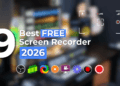
In this guide, we’ll break down the best free screen recording software in 2026, including tools with no watermark, HD recording, and powerful features. We’ve also included pros, cons, and ideal use cases so you can pick the perfect tool quickly.
What to Look for in Free Screen Recording Software
Before diving into the list, here are the key factors that separate good tools from frustrating ones:
1. Video Quality
Look for at least 1080p HD recording. Some tools even support 4K.
2. Audio Recording
A good recorder should capture:
- System audio
- Microphone input
- Both simultaneously
3. Ease of Use
Beginners should prioritize simple interfaces, while advanced users may want customization.
4. No Watermark
Many free tools add branding—avoid these if you want professional results.
5. Export & Sharing Options
Look for formats like MP4, GIF, or direct uploads to YouTube or cloud platforms.
Best Free Screen Recording Software (2026)
1. OBS Studio (Best Overall – Professional Grade)
OBS Studio is the gold standard for free screen recording and live streaming.
OBS Studio is widely considered one of the best free screen recording software available today, especially for users who want professional-level control. This open-source tool is designed for both high-quality screen recording and live streaming, making it a top choice among YouTubers, gamers, and content creators. With its powerful customization options, OBS allows you to record multiple sources, including screen, webcam, and audio, all at once. Although beginners may find it slightly complex at first, its flexibility and performance make it unbeatable in the free category.
Key Features:
- Full HD & 4K recording
- No watermark or time limits
- Advanced scene composition
- Live streaming support
Pros:
- Completely free & open-source
- Highly customizable
- Works on Windows, Mac, Linux
Cons:
- Steep learning curve
👉 Try OBS Studio (Free)
👉 Best for: Streamers, YouTubers, advanced users
2. ShareX (Best for Advanced Users & Automation)
ShareX is a powerful screen capture tool with automation features.
ShareX is a feature-rich and highly customizable free screen recorder for Windows that goes far beyond basic recording. It’s especially among developers and advanced users who want automation and control. ShareX supports screen recording, GIF creation, and even workflow automation, allowing users to streamline repetitive tasks. Its lightweight nature ensures smooth performance even on mid-range PCs. If you’re looking for a powerful yet free tool without watermark limitations, ShareX is an excellent option.

Key Features:
- Screen recording + GIF capture
- Workflow automation
- Custom hotkeys
Pros:
- Lightweight
- No watermark
- Highly customizable
Cons:
Interface not beginner-friendly
👉 Download ShareX Free
👉 Best for: Developers, power users
3. FlashBack Express (Best No Watermark Option)
FlashBack Express offers a clean interface and reliable performance.
FlashBack Express is one of the most user-friendly options in the list of best free screen recording software without a watermark. It offers a clean interface and smooth performance, making it perfect for beginners, teachers, and professionals creating tutorials. Unlike many free tools, FlashBack Express does not impose time limits on recordings, allowing you to capture long sessions easily. It’s a great balance between simplicity and functionality for users who want reliable results without complexity.
Key Features:
- No watermark
- Unlimited recording length
- Webcam overlay
Pros:
- Easy to use
- Great for tutorials
Cons:
Limited editing tools
👉 Get FlashBack Express
👉 Best for: Beginners and educators
4. Loom (Best for Quick Sharing & Teams)
Loom is perfect for quick screen recordings with instant sharing.
Loom is a modern, cloud-based screen recording software designed for quick communication and collaboration. It’s widely used by remote teams, freelancers, and educators who need to record and share videos instantly. With Loom, you can record your screen along with webcam and audio, then generate a shareable link within seconds. Its simplicity and speed make it one of the best choices for business communication and online presentations.

Key Features:
- Cloud-based storage
- Instant share links
- Webcam + screen recording
Pros:
Super easy to use
Great collaboration features
Cons:
Limited free plan recording length
👉 Start Using Loom Free
👉 Best for: Remote teams, business users
5. ScreenRec (Best Lightweight Recorder)
ScreenRec is fast, simple, and doesn’t consume many resources.
ScreenRec is a simple yet efficient free screen recorder for low-end PCs. It focuses on speed and ease of use, allowing users to record and share videos instantly without lag. One of its standout features is instant private sharing via secure links, which is useful for quick communication. Because of its lightweight design, ScreenRec runs smoothly even on older systems, making it ideal for users who need a hassle-free recording experience.

Key Features:
- Instant sharing
- No lag recording
- Private cloud storage
Pros:
- Minimal CPU usage
- No watermark
Cons:
Limited advanced features
👉 Download ScreenRec
👉 Best for: Low-end PCs
6. CamStudio (Best Open-Source Alternative)
CamStudio is a basic, open-source recorder.
CamStudio is a basic and lightweight open-source screen recording software that’s suitable for users who need simple recording functionality. While it doesn’t offer advanced features like modern tools, it gets the job done for straightforward screen capture tasks. CamStudio is often chosen by users who prefer minimal software without complicated settings. It’s a decent option for beginners who want a no-frills recording tool.
Key Features:
- AVI recording
- Lightweight
Pros:
- Free and simple
- Open-source
Cons:
- Outdated interface
- Limited features
👉 Try CamStudio
👉 Best for: Simple recordings
7. Xbox Game Bar (Best Built-in Windows Tool)
Pre-installed on Windows 10/11.
Xbox Game Bar is a built-in screen recording tool for Windows 10 and 11, making it one of the easiest ways to record your screen without installing additional software. Originally designed for gamers, it works well for recording apps, tutorials, and short clips. Since it comes pre-installed, it’s a convenient option for quick recordings. While it lacks advanced features, its simplicity and accessibility make it useful for everyday tasks.
Key Features:
- Instant recording
- Game capture
Pros:
- No installation needed
- Easy to use
Cons:
Limited to certain apps
👉 Use via Windows + G shortcut
👉 Best for: Quick recordings without installing software
8. Bandicam Free (Freemium Option)
Bandicam Free is a popular choice for users who want high-quality screen recording, especially for gaming. It’s known for its ability to capture smooth videos with high compression, which helps reduce file size without sacrificing quality. Although the free version includes a watermark and some limitations, it still offers excellent performance for recording gameplay, tutorials, and presentations. It’s a good option if you prioritize video quality and performance.
Key Features:
- High compression
- Game recording mode
Pros:
Smooth performance
Cons:
Watermark in free version
👉 Try Bandicam
👉 Best for: High-quality gameplay recording
9. Icecream Screen Recorder (User-Friendly Option)
Icecream Screen Recorder is a beginner-friendly screen recording software with a clean and intuitive interface. It allows users to record specific areas of the screen, add annotations, and capture audio easily. This tool is ideal for users who want a straightforward recording experience without dealing with complex settings. While the free version has some limitations, it’s still a solid option for casual users and simple projects. Best free screen recording software
Pros:
- Clean UI
- Easy setup
Cons:
Limited free version 10. Apowersoft Free Online Recorder (Best Online Tool)
👉 Best for: No downloads
Pros:
- Browser-based
- Quick setup
Cons:
Requires internet
| Software | Platform | Watermark | Best For |
|---|---|---|---|
| OBS Studio | Win/Mac/Linux | No | Professionals |
| ShareX | Windows | No | Advanced users |
| FlashBack | Windows | No | Beginners |
| Loom | Web/All | Limited | Teams |
| ScreenRec | Win/Linux | No | Low-end PCs |
Best Screen Recorders by Use Case
For Gaming
- OBS Studio
- Xbox Game Bar
For Tutorials
- FlashBack Express
- Loom
For Low-End PCs
- ScreenRec
- ShareX
For Online Use
- Loom
- Apowersoft
How to Record Your Screen for Free
- Install your chosen software
- Select recording area (full screen/window)
- Enable audio settings
- Click record
- Save or share the video
Common Problems & Fixes
Laggy Recording
- Lower resolution
- Close background apps
No Audio
- Check microphone permissions
- Select correct audio device
Large File Size
- Use compression settings
- Export in MP4 format
FAQs
Is free screen recording software safe?
Yes, if downloaded from official websites.
Can I record without watermark?
Yes—tools like OBS and ShareX offer watermark-free recording.
What is the best free screen recorder?
OBS Studio is the best overall option.
Can I record in 4K?
Yes, with OBS Studio and similar tools.
Conclusion
Choosing the best free screen recording software depends on your needs:
- Best overall: OBS Studio
- Best for beginners: FlashBack Express
- Best for teams: Loom
- Best lightweight option: ScreenRec
Most users will find OBS Studio to be the most powerful and flexible choice, while beginners may prefer something simpler like FlashBack Express.
Best Free Video Editing Software for Beginners (2026 Guide)
Best Free AI Tools for Students in 2026
How to Use ChatGPT for Blogging: A Complete Guide for Beginners & Pros
Best AI Tools for Blogging in 2026
👉 Start with a free tool today and upgrade your content instantly.