
If you’re just starting out with video editing, the biggest challenge isn’t creativity—it’s choosing the right software. With so many options available, it’s easy to feel overwhelmed.
The good news? You don’t need to spend money to get started.
In this guide, we’ll break down the best free video editing software for beginners, compare their features, and help you choose the right one for your needs—whether you’re editing YouTube videos, TikToks, or personal projects.
Best Free Video Editing Software for Beginners
Why Beginners Should Start with Free Video Editing Software
Before jumping into paid tools like Adobe Premiere Pro or Final Cut Pro, free software offers several advantages:
- ✅ No financial risk
- ✅ Easier learning curve
- ✅ Enough features for most beginner projects
- ✅ Great for experimenting and learning
For most beginners, free tools provide everything needed to create professional-looking videos.
What Makes a Video Editor Beginner-Friendly?
Not all video editors are created equal. Here’s what to look for:
1. Simple Interface
A clean, intuitive layout helps you focus on editing instead of figuring out where things are.
2. Drag-and-Drop Editing
Beginner-friendly tools let you easily import clips, add effects, and arrange timelines.
3. Built-in Templates
Templates save time and help you create polished videos quickly.
4. Low System Requirements
Some editors require powerful computers. Beginners should start with lightweight options.
5. Learning Resources
Tutorials, guides, and active communities make a huge difference.
Best Free Video Editing Software for Beginners (2026)
Let’s dive into the top tools you can start using today.
1. CapCut (Best Overall for Beginners)
CapCut has quickly become one of the most popular free video editors—especially for social media creators.
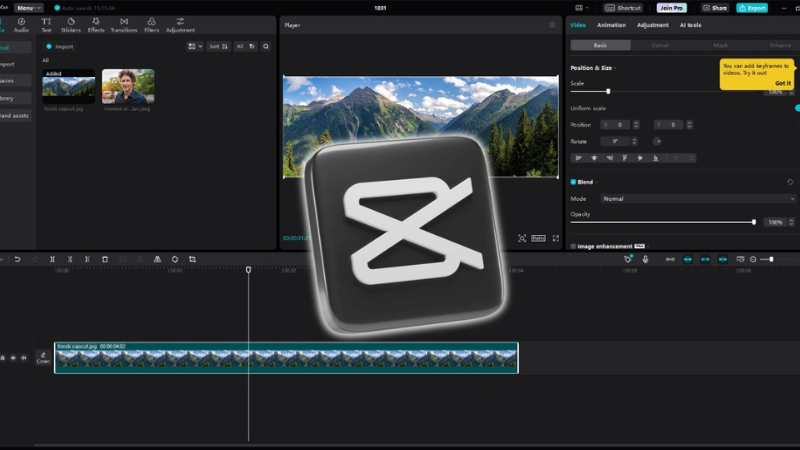
Key Features:
- Drag-and-drop interface
- Built-in effects and transitions
- Auto captions and AI tools
- Music and sound library
Pros:
- Extremely easy to use
- Available on mobile and desktop
- No watermark in most exports
- Perfect for TikTok, Reels, and YouTube Shorts
Cons:
- Limited advanced editing features
- Requires internet for some tools
👉 Best For: Absolute beginners and social media creators
2. DaVinci Resolve (Best for Advanced Beginners)
DaVinci Resolve is a professional-grade editor used in Hollywood—and it’s free.
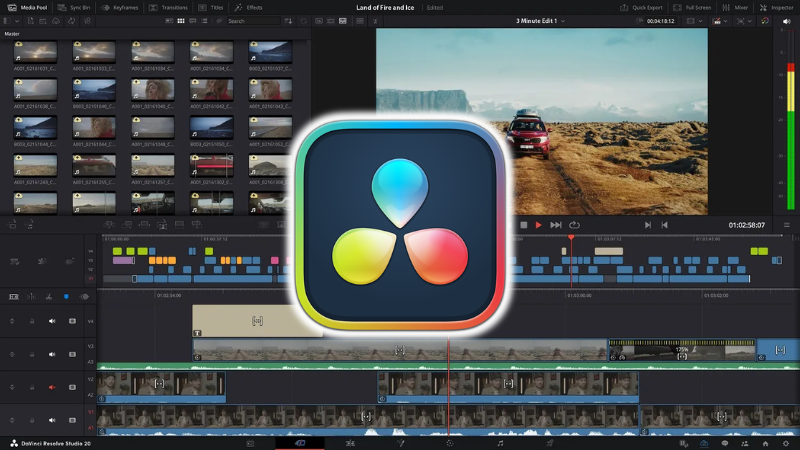
Key Features:
- Advanced color grading
- Multi-track timeline editing
- Audio post-production tools
- Visual effects
Pros:
- Extremely powerful
- No watermark
- High-quality exports (up to 4K+)
Cons:
- Steeper learning curve
- Requires a strong computer
👉 Best For: Beginners who want to go pro
3. Shotcut (Best Open-Source Editor)
Shotcut is a free, open-source video editor that works on multiple platforms.
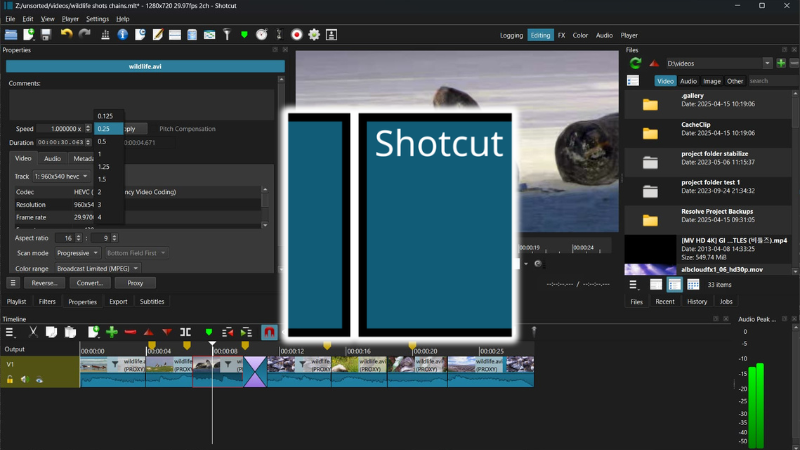
Key Features:
- Wide format support
- Timeline editing
- Filters and effects
Pros:
- Completely free with no watermark
- Lightweight
- Cross-platform (Windows, Mac, Linux)
Cons:
- Interface feels outdated
- Not as beginner-friendly as others
👉 Best For: Users who want a simple, no-cost solution
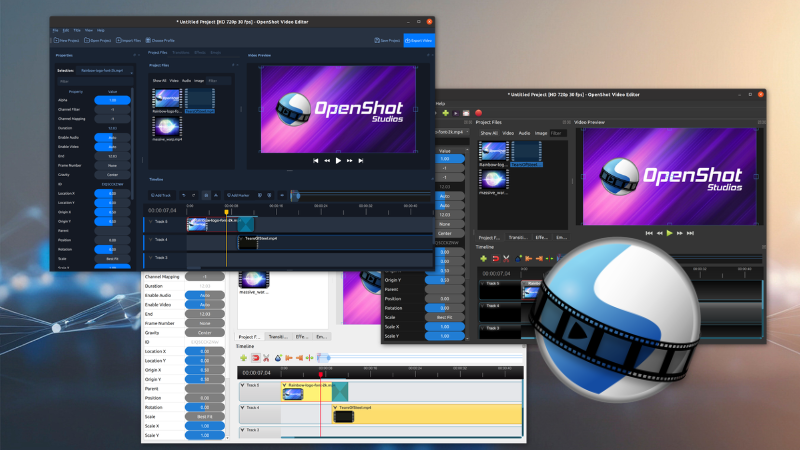
4. OpenShot (Best for Simplicity)
OpenShot is one of the easiest video editors for beginners.
Key Features:
- Drag-and-drop editing
- Simple timeline
- Basic transitions
Pros:
- Very easy to learn
- Lightweight
- Open-source
Cons:
- Limited features
- Occasional lag on large projects
👉 Best For: First-time editors
5. iMovie (Best for Mac Users)
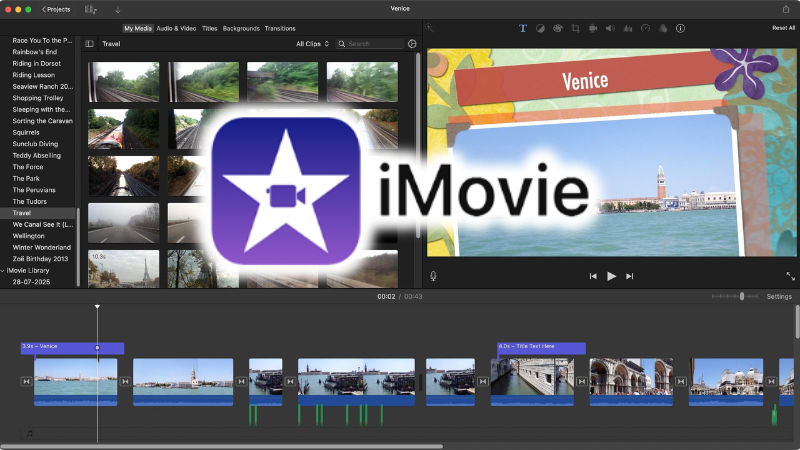
If you’re using a Mac, iMovie is one of the best free options available.
Key Features:
- Clean interface
- Built-in templates
- Apple ecosystem integration
Pros:
- Beginner-friendly
- Smooth performance
- Great for storytelling
Cons:
- Only available on Apple devices
- Limited advanced features
👉 Best For: Mac users and beginners
6. Canva Video Editor (Best for Social Media Content)
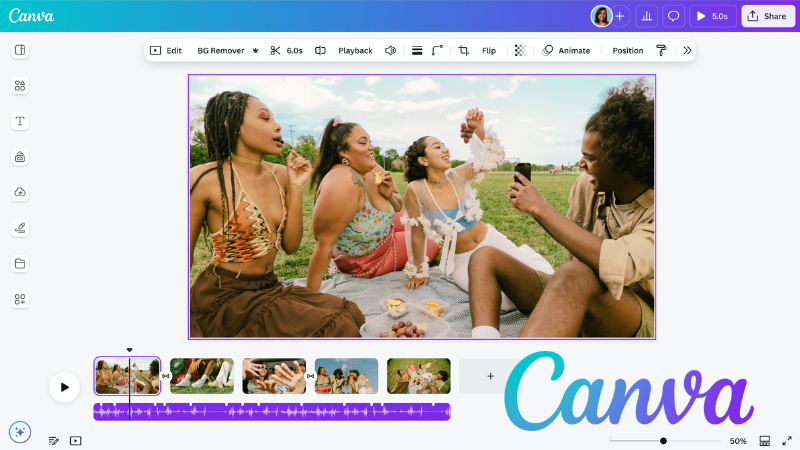
Canva isn’t just for graphics—it also offers a powerful video editor.
Key Features:
- Drag-and-drop editing
- Thousands of templates
- Stock videos and music
Pros:
- Extremely easy to use
- Perfect for quick edits
- Great for marketing content
Cons:
- Limited timeline control
- Requires internet connection
👉 Best For: Content creators and marketers
7. HitFilm Free (Best for Effects & VFX)
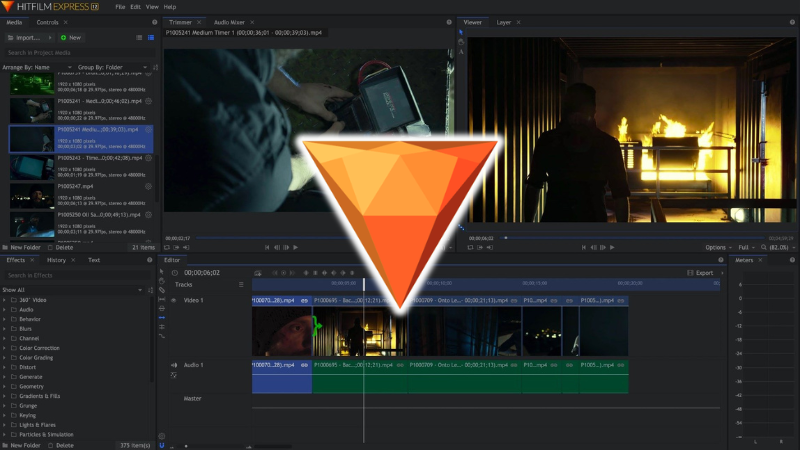
HitFilm combines video editing with visual effects.
Key Features:
- Built-in VFX tools
- Advanced editing features
- Compositing tools
Pros:
- Great for cinematic edits
- Powerful free version
- No watermark
Cons:
- Slight learning curve
- Requires decent hardware
👉 Best For: Beginners interested in effects
Free vs Paid Video Editing Software
You might be wondering—should you upgrade to paid software?
Free Software Limitations:
- Fewer advanced features
- Limited plugins
- Lower performance in some cases
When to Upgrade:
- You need professional-level editing
- You’re working with clients
- You want advanced effects or automation
👉 Tip: Start free, upgrade later.
How to Choose the Right Video Editor
1. Based on Your Device
- Low-end PC → OpenShot or Shotcut
- High-end PC → DaVinci Resolve
- Mobile → CapCut
- Mac → iMovie
2. Based on Your Goal
- YouTube → DaVinci Resolve / CapCut
- TikTok/Reels → CapCut / Canva
- Professional editing → DaVinci Resolve
3. Based on Skill Level
- Beginner → CapCut, OpenShot
- Intermediate → DaVinci Resolve, HitFilm
Beginner Tips for Video Editing
Starting out? These tips will help you improve quickly:
- 🎬 Start with short videos
- ✂️ Focus on clean cuts
- 🔊 Don’t ignore audio quality
- 🎨 Use effects sparingly
- 📚 Watch tutorials regularly
Consistency is more important than perfection.
Common Mistakes Beginners Make
Avoid these early on:
- ❌ Overusing transitions and effects
- ❌ Ignoring sound quality
- ❌ Exporting in wrong formats
- ❌ Not organizing clips properly
Keeping things simple often leads to better results.
FAQs
What is the best free video editing software for beginners?
CapCut is the easiest to start with, while DaVinci Resolve is best for long-term growth.
Which video editor has no watermark?
Most tools on this list (CapCut, DaVinci Resolve, Shotcut, OpenShot) offer no watermark.
Is DaVinci Resolve good for beginners?
Yes—but it has a learning curve. It’s ideal for beginners who want to become professionals.
Can I edit videos on a low-end PC?
Yes. Tools like OpenShot and Shotcut are designed for lower-end systems.
What is the easiest video editing app?
CapCut and Canva are the easiest for complete beginners.
Final Verdict: Which One Should You Choose?
Here’s a quick recommendation:
- 👉 Best overall: CapCut
- 👉 Best for professional growth: DaVinci Resolve
- 👉 Best for simplicity: OpenShot
- 👉 Best for Mac users: iMovie
If you’re just starting out, go with CapCut. It’s fast, simple, and powerful enough for most beginner projects.
Conclusion
Getting started with video editing doesn’t have to be complicated—or expensive.
The tools listed above are more than enough to help you:
- Learn editing basics
- Create high-quality content
- Build your skills
The key is simple: pick one tool and start creating.
The Review
Comparison Table
If you’re looking for the best free video editing software for beginners, here’s a quick breakdown based on usability, features, and performance: 🏆 CapCut is the best overall choice for beginners thanks to its simple interface, powerful features, and no watermark exports. Perfect for TikTok and YouTube Shorts creators. 🎬 DaVinci Resolve is ideal for users who want to grow into professional editing. It offers advanced tools like color grading but requires a powerful PC. 🧩 Shotcut is a solid open-source option with no cost at all, though its interface may feel slightly outdated for beginners. ✂️ OpenShot is one of the easiest video editors available, making it perfect for complete beginners with basic editing needs. 🍎 iMovie is the best choice for Mac users, offering smooth performance and a beginner-friendly experience. 🎨 Canva Video Editor is perfect for quick, template-based editing, especially for social media and marketing content. 🎥 HitFilm Free is great for beginners interested in cinematic editing and visual effects.
Review Breakdown
-
CapCut
-
DaVinci Resolve
-
Shotcut
-
OpenShot
-
iMovie
-
Canva
-
HitFilm Free







Comments 1